Install File Watcher in 30 seconds
Once the download completes, double-click the file to start installation.
Trouble installing? See these options:
- Download File Watcher - Installer digitally signed by DataMystic. Works on Windows 10/11 and earlier. You may need to take additional steps to install it, see below
- Download File Watcher ZIP file - fully featured installer
- Open in Microsoft Store Minimal installer, no admin rights needed. Misses a lot of useful samples, shell extensions etc
- Check the download help.
Get File Watcher Installed Now
Here are installation troubleshooting tips
1: The app you're trying to install isn't a "Microsoft-verified app"
Windows may show this warning because File Watcher is downloaded from our website rather than the Microsoft Store. This is normal for most desktop software, despite it being digitally signed etc. It is basically Microsoft trying to strangle the software market and force all installs via the Microsoft Store.
To install:
- Click Install anyway in the dialog, or
- Click Change app recommendation settings
If the "Install anyway" option is not shown, you need to change your Windows settings:
- Open Settings > Apps > Advanced app settings
- Under Choose where to get apps, select Anywhere
- Run the installer again
On older Windows 10 versions: Settings > Apps > Apps & features, then change the dropdown at the top.
Alternatively, install the Microsoft Store version which does not require this setting, but also excluded all the things you expect from desktop software like context menus in Windows explorer etc
2: Windows SmartScreen Warning
You may see "Windows protected your PC":
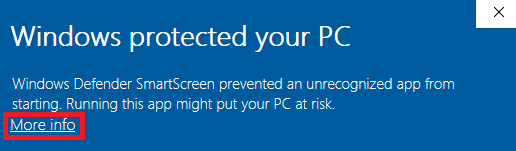
If this appears:
- Click More info
- Click Run anyway
3: Antivirus False Positive
File Watcher is digitally signed by DataMystic. If your antivirus warns about the file, it may be a false positive on new releases. You can safely allow or allow-list the installer.
4: Corporate IT Restrictions
If your organisation blocks installations, use the Microsoft Store version instead (no admin rights needed):
Release Notes
Read Release Notes